Allen & Heath - XONE K3
CONTROLS - 4 DECKS MODE
The following functionality is offered when the 4-Decks Controller-specific setting is selected (see
Advanced Setup ). The Deck/Channel order is 3-1-2-4 by default, but can be changed to 1-2-3-4 (See VirtualDJ Options->MixerOrder setting).
The Bottom section (buttons) and the middle knobs of the Xone K3 can be set to 2 different modes, via the LAYER button, while the top Encoders offer various functionality as described in the following tables.
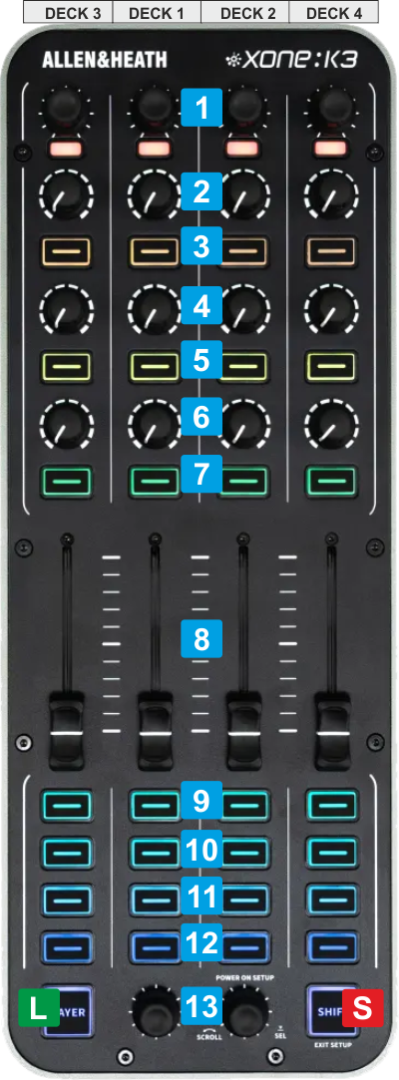
KEY
ACTION
SHIFT (SECONDARY) ACTION
S SHIFTPress this button down to access secondary actions as described in the SHIFT ACTION column L LAYERToggle between Control and Hotcues mode for the bottom buttonsToggle between EQ (leds get the red color) and FX mode for the top buttons & knobs (leds get the blue color)8 FADERAdjust the Volume of each of the 4 Decks 13 SCROLLScroll through folders or Files depending on the focused Browser list.
When in Folders list, push to set focus to the Songs list, or long press to open/close sub-folders
When in Songs list:
- Push the Left Encoder to load the selected Track in Browser to Deck 1.
- Push the Right Encoder to load the selected Track in Browser to Deck 2
Hold the LAYER button down (led becomes purple) and then rotate to navigate through the Loaded Track of Decks 1 and 2 respectively.
Rotate to set the focus to the previous/next Browser List (Folders, Songs, Sideview).
Push the Left Encoder to load the selected Track in Browser to Deck 3.
Push the Right Encoder to load the selected Track in Browser to Deck 4
Hold the LAYER button down (led becomes purple) and then rotate to navigate through the Loaded Track of Decks 3 and 4 respectively..TOP ENCODERS
KEY
ACTION
SHIFT (SECONDARY) ACTION
1 TOP ENCODERWhen in Loop mode (leds in green):
- Rotate to half/double the size of the Loop .
- Push to enable/disable the selected Loop
When in Filter mode (leds in orange) :
- Rotate to adjust the selected Color FX (Filter by default).
- Push to reset the selected Color FX to the center/Off position.
When in FX Beats mode (leds in Blue) :
- Rotate to adjust the Beats Parameter of all 3 FX Slots together, by 1 beats at a step.
- Push to set the Beats Parameter of all 3 FX SLots to 1 beat value.
When in Key mode (leds in purple) :
- Rotate to adjust the Key of the loaded Track by -1/+1 semitone per step.
- Push to reset Track's Key back to its original value.
When in FX Select mode (leds in Cyan) :
- Rotate to scroll and select the FX for the selected FX Slot (via SHIFT+FX ON buttons)
- Push to close the FX List and return to the assigned mode as above.
Push the Encoders from left to Right to select between Loop , Filter, Key and FX Beats modes for the Top encoders. The selection applies to all 4 Decks/Encoders.
When in Loop , move the Loop forward/backwards by 1 Beat TOP BUTTONS/KNOBS - EQ MODE (default)
KEY
ACTION
SHIFT (SECONDARY) ACTION
2 EQ HIGHAdjust the High Equalizer Band or the selected Stem, depending on the EQ Mode 3 EQ HIGH KILLPush to kill/mute the High Equalizer Band or the selected Stem, depending on the EQ Mode 4 EQ MIDAdjust the Mid Equalizer Band or the selected Stem, depending on the EQ Mode 5 EQ MID KILLPush to kill/mute the Mid Equalizer Band or the selected Stem, depending on the EQ Mode 6 EQ LOWAdjust the Low Equalizer Band or the selected Stem, depending on the EQ Mode 7 EQ LOW KILLPush to kill/mute the Low Equalizer Band or the selected Stem, depending on the EQ Mode TOP BUTTONS/KNOBS - FX MODE
KEY
ACTION
SHIFT (SECONDARY) ACTION
2 FX1 PRMAdjust the 1st Parameter of the selected Effect on FX Slot 1 3 FX1 ONEnable/disable the selected Effect of FX Slot 1Enable the FX SELECT mode for FX Slot 14 FX2 PRMAdjust the 1st Parameter of the selected Effect on FX Slot 2 5 FX2 ONEnable/disable the selected Effect of FX Slot 2Enable the FX SELECT mode for FX Slot 26 FX3 PRMAdjust the 1st Parameter of the selected Effect on FX Slot 3 7 FX3 ONEnable/disable the selected Effect of FX Slot 3Enable the FX SELECT mode for FX Slot 3BOTTOM BUTTONS - CONTROL MODE (default)
KEY
ACTION
SHIFT (SECONDARY) ACTION
9 PITCH BENDTemporary speed up Track's TempoTemporary slow down Track's Tempo 10 SYNCSync BPM and Phase with the other (or Master ) DeckGradually reset Track's tempo (BPM) to the original value 11 Cue Assign Temporary Cue when paused or return to the assigned position when playing and previews while pressedJumps to the beginning of the Track 12 PLAYPlays/pauses TrackPlay/stutter BOTTOM BUTTONS - HOTCUES MODE (default)
KEY
ACTION
SHIFT (SECONDARY) ACTION
9 H. Cue 1Assigns HotCue 1 to current position or jump to the assigned positionDeletes HotCue 1 10 H. Cue 2Assigns HotCue 2 to current position or jump to the assigned positionDeletes HotCue 2 11 H. Cue 3Assigns HotCue 3 to current position or jump to the assigned positionDeletes HotCue 3 12 H. Cue 4Assigns HotCue 3 to current position or jump to the assigned positionDeletes HotCue 3


