


LaunchControl XL 3
Advanced Operation
Advanced Settings
The firmware of Novation LaunchControl XL 3 offers a few settings when the unit operates in one of the two available "DAW" modes.
In order to change those settings, open VirtualDJ settings, click on "OPTIONS" tab and then on "CONTROLLERS" icon.
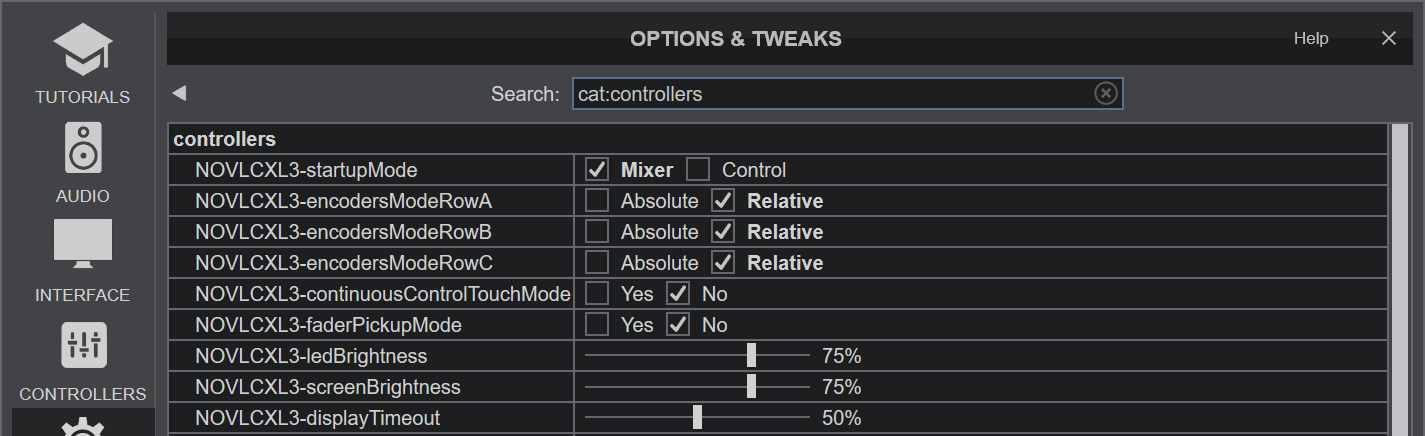
Available settings:
- startupMode:
Allows you to specify in which of the DAW modes the unit will enter automatically when VirtualDJ starts. - enodersModeRowA:
Allows you to change the mode of operation of the top row encoders between relative and absolute.
The default setting is relative. Please note the factory default mapper will stop working properly of you switch this setting to absolute. Therefore change this setting only if you remap the controller and you need to change the way the encoders work. - enodersModeRowB:
Allows you to change the mode of operation of the middle row encoders between relative and absolute.
The default setting is relative. The same limitations apply when changing this setting as above. - enodersModeRowC:
Allows you to change the mode of operation of the bottom row encoders between relative and absolute.
The default setting is relative. The same limitations apply when changing this setting as above. - continuousControlTouchMode:
When this setting is enabled, LaunchControl XL 3 will send an extra MIDI message (that you can capture and use) while you move a fader or an encoder.
The default setting is "No". Changing this setting does not affect the factory default mapper. - faderPickupMode:
Allows you to toggle the "fader pickup mode" on/off on hardware level in order to avoid accidental jumps when using the faders. Since VirtualDJ has already a built in pickup mode for faders, the default setting is "No" and it's generally advised to leave this setting untouched. - ledBrightness:
Controls the overall brightness of the RGB leds - screenBrightness:
Controls the overall brightness of the OLED screen - displayTimeout:
The time that screen will show an element's information before resetting back to default view. Minimum is 1 sec and maximum is 10 seconds.
Custom Mapping User Modes
Any of the 16 available user (simple) templates can be assigned to VDJ script actions.
- Press the MODE button once.
- Press any of the 16 assignable buttons once.
- Press the MODE button once again.
The unit enters one of the 16 user templates.
Press a button or move a knob/fader to assign it to the desired action.
See further at ..
- https://virtualdj.com/wiki/VDJscript.html
- https://virtualdj.com/manuals/virtualdj/settings/controllers.html
In the user modes not all keys are available to be used by VirtualDJ.
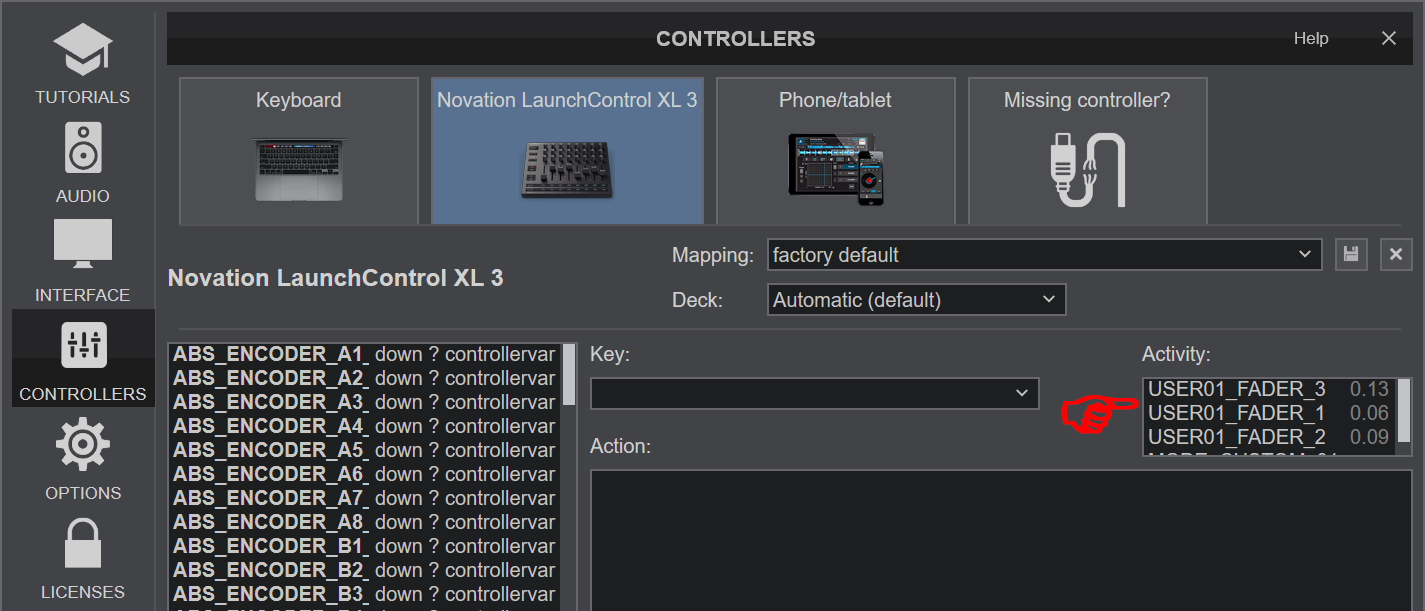
You can use only the 24 encoders (in absolute mode), the 8 faders and the 16 assignable buttons. These keys are pre-defined in VirtualDJ and their names starts with USERn_ (where n is the user template number from 01 to16). E.g. the key named as USER01_FADER_3 is the third fader when template 1 is used.
Faders & Knobs Positions
On VirtualDJ startup, the device does not offer any Dump Request, so the positions of the faders and knobs is now known. Therefore, the positions of the hardware and software faders/knobs may not match. If this is the only MIDI device used in VirtualDJ, consider changing the setting controllerTakeoverMode to avoid sudden changes.
