


User Manual
ShoutOut
Shout Out creates professional sounding AI generated audio announcements that can be played to the audience. By entering the text into Shout Out and selecting a style as well as a voice, the announcement can be broadcasted to your listeners without ever picking up a microphone. This feature provides the ability to send out announcements, replace lyrics, create DJ drops, or anything else that is happening at the event or venue.

To open ShoutOut, click on the button in the application controls at the top of the software interface. Once opened, the main ShoutOut menu will be displayed.
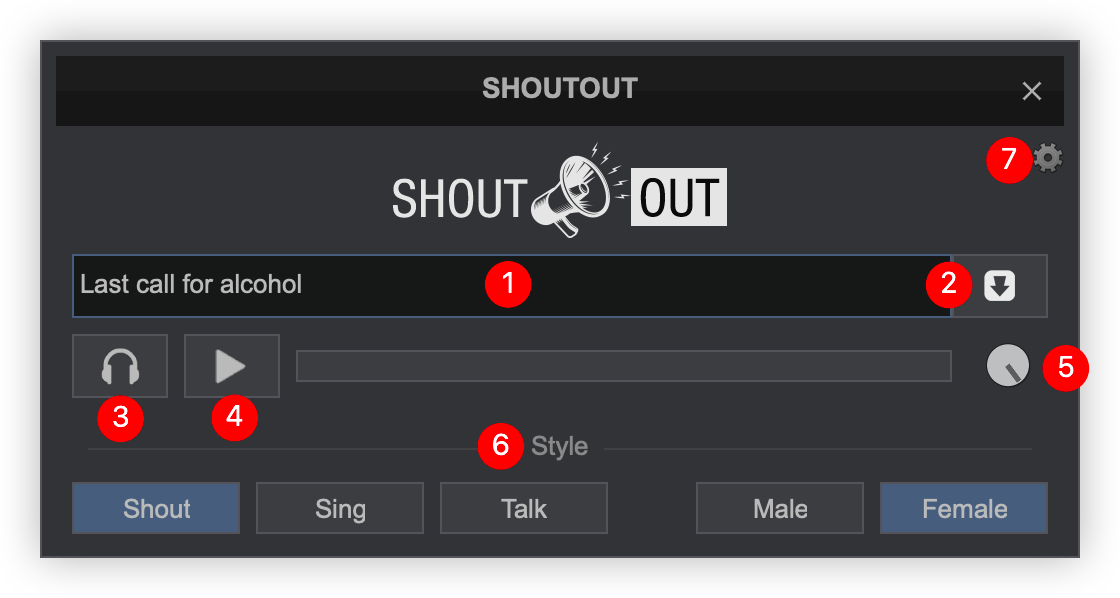
- TEXT INPUT. Type into the text input box for the audio the Shout Out will say.
- GENERATE. Click the Generate button to create the Shout Out.
- PFL. Click the PFL to pre-listen to the Shout Out in headphones (if a headphone channel has been created) before sending it to the main output.
- PLAY . Plays the Shout Out over the Master Output for the audience. It will also be used to generate the Shout Out if the generate button was not previously used to create it.
- VOLUME. Adjusts the main output volume for the Shout Out.
- STYLE. Choose how the Shout Out is generated. Shout, Sing, or Talk, as well as if the voice is Male or Female. After each style change it will be regenerated by either pressing the play button or clicking on the generate button.
- SETTINGS.
Talk-Over Choose how the Shout Out is played:
Stems Swap - Mutes the vocal stem so the Shout Out plays cleanly without vocals clashing.
Volume - Reduces the volume of the entire track while the Shout Out plays.
None - Will play the Shout Out without reducing volume or swapping the vocal stem.Voice Provides the ability to choose a specific voice output. Random is the default. Save to sampler Saves the Shout Out as a sample to it's own ShoutOut bank.
*The ShoutOut feature requires a Pro license